How to Set Up a Smart Home on a Budget

Transforming your home into a smart, connected space doesn’t have to cost a fortune. With affordable devices and a bit of planning, you can enjoy the convenience, security, and energy savings of a smart home without breaking the bank.
In this guide, I’ll walk you through setting up a budget-friendly smart home, recommend five devices under $50, provide step-by-step setup instructions, and share tips for using your smartphone as a hub.
Plus, I’ll highlight how these devices can save you money through energy monitoring and efficiency. Let’s dive in!
Why Go Smart on a Budget?
Smart home technology offers convenience (think voice-controlled lights), enhanced security (like real-time camera feeds), and cost savings (through energy-efficient devices).
According to the U.S. Department of Energy, smart thermostats alone can save up to 15% on heating and cooling costs.
By choosing affordable devices and skipping pricey subscriptions, you can achieve these benefits for less than $200 to start, with room to expand as your budget allows.
Before you buy, define your goals.
- Want to save on utility bills? Prioritize energy-monitoring plugs or smart bulbs.
- Need peace of mind? Focus on security cameras or smart locks.
This guide assumes you’re starting small, using your smartphone as the central hub to avoid the cost of a dedicated device like an Amazon Echo or Google Nest.
Thanks for reading THE SMART HOME GUIDE! Subscribe for free to receive new posts and support my work.
5 Budget-Friendly Smart Home Devices Under $50
Here are five affordable, high-quality devices to kickstart your smart home.
All are compatible with Alexa and Google Assistant, work with your smartphone, and are available for under $50 (prices checked as of May 2025).
- Kasa Smart Plug Mini (TP-Link) - ~$15
Turn any appliance into a smart device with this compact plug. Control lamps, fans, or coffee makers remotely, set schedules, and monitor energy usage. - Wyze Cam v3 - ~$36
This indoor/outdoor camera offers 1080p HD video, color night vision, and motion detection. No subscription is needed for local storage via a microSD card. - Wyze Smart Bulb (Single) - ~$12
Adjust brightness and color temperature (tunable white) via your phone or voice. These LED bulbs use less energy than traditional ones, saving you money. - TP-Link Tapo P100 Smart Plug - ~$10
A budget-friendly alternative to Kasa, this plug offers remote control and scheduling. It’s compact and reliable for automating small appliances. - Sengled Smart LED Bulb (Soft White) - ~$10
This energy-efficient bulb connects directly to Wi-Fi (no hub needed) and works with Alexa or Google Assistant for easy lighting control.
Total cost for all five: ~$83.
Prices may vary, so check for sales, especially around Black Friday or Amazon Prime Day.
Step-by-Step Setup Instructions
Setting up a smart home is easier than ever, thanks to plug-and-play devices and intuitive apps.
Follow these steps to get your devices up and running using your smartphone as the hub.
Step 1: Plan Your Setup
- Choose an Ecosystem: Stick to one platform (e.g., Alexa or Google Home) for seamless integration. Since you’re using your smartphone, download the Amazon Alexa app or Google Home app (both free on iOS and Android).
- Check Wi-Fi: Ensure your 2.4GHz Wi-Fi network is stable, as most budget devices don’t support 5GHz.
- Group by Room: Plan to organize devices by room (e.g., “Living Room Lights”) in the app for easier control.
Step 2: Set Up Each Device
For each device, follow these general steps (specific instructions are in the product manual or app):
Download the Manufacturer’s App:
Wyze Cam v3 and Wyze Bulb: Wyze app
Sengled Bulb: Sengled Home app
Plug In or Install the Device:
Plugs: Insert into a wall outlet.
Bulbs: Screw into a standard socket.
Camera: Place in a spot with a clear view and power access (use an outlet or extension cord for outdoor use).
Connect to Wi-Fi:
Open the app, select “Add Device,” and follow prompts to connect to your 2.4GHz Wi-Fi network.
Enter your Wi-Fi password and wait for the device to pair (usually 30–60 seconds).
Name and Group:
Assign names like “Bedroom Lamp” or “Front Door Cam” and group by room in the app.
Link to Alexa or Google Home:
In the Alexa or Google Home app, go to “Add Device,” select the brand (e.g., Kasa, Wyze), and link your account. This lets you control all devices from one app or with voice commands if you add a smart speaker later.
Step 3: Test and Customize
- Test each device by turning it on/off via the app.
- Set schedules (e.g., lights on at 6 PM) or automations (e.g., camera sends a motion alert).
- Adjust settings like motion detection sensitivity for the Wyze Cam or bulb brightness.
Step 4: Secure Your Setup
- Change default passwords in each app.
- Enable two-factor authentication if available.
- Keep apps and device firmware updated to protect against security risks.
Using Your Smartphone as a Hub
A smartphone is a cost-effective alternative to a dedicated hub like an Echo Dot ($30–$50). Here’s how to maximize it:
- Centralized Control: The Alexa or Google Home app lets you manage all devices in one place. Create routines, like a “Goodnight” command that turns off lights and arms the camera.
- Voice Commands: If your phone supports Alexa or Google Assistant, enable voice control for hands-free operation (e.g., “Hey Google, turn on the living room light”).
- Remote Access: Control devices from anywhere with an internet connection—perfect for turning on a plug to deter burglars while you’re away.
- Limitations: Unlike a dedicated hub, your phone won’t act as a central command when you’re offline or away from home. Consider adding a budget smart speaker later for always-on control.
Cost-Saving Benefits: Energy Monitoring and Efficiency
Smart devices aren’t just convenient—they can lower your utility bills. Here’s how:
- Energy Monitoring: Kasa Smart Plugs and Tapo P100 track energy usage in real time via their apps. Identify power-hungry appliances (like an old fridge) and schedule them to run during off-peak hours when electricity rates are lower.
- Smart Lighting: Wyze and Sengled LED bulbs use up to 80% less energy than incandescent bulbs and can be dimmed or turned off automatically when not needed.
- Automations: Set plugs to power down unused devices (e.g., a TV left on standby) or create a “Leave Home” routine to turn off all lights and plugs, reducing phantom energy drain.
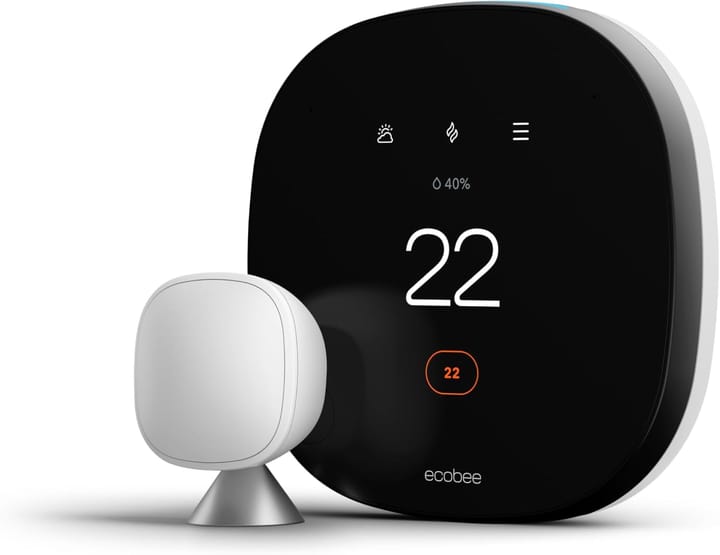
- Long-Term Savings: Users report saving $100–$200 annually by optimizing energy use with smart plugs and bulbs. Pairing these with a smart thermostat (like the Wyze Thermostat, ~$60) can amplify savings.
Tips for Expanding Your Smart Home
- Start Small: Begin with one or two devices and add more as you learn what works for your home.
- Look for Deals: Check Amazon for refurbished devices or bundles to save more.
- Avoid Subscriptions: Opt for devices like the Wyze Cam that offer free local storage instead of cloud subscriptions.
- DIY Installation: Most devices are plug-and-play, but for complex setups (e.g., smart thermostats), consider professional help to avoid costly mistakes.
Final Thoughts
Creating a smart home on a budget is not only achievable but also rewarding.
With devices like Kasa Smart Plugs and Wyze Cams, you can enjoy convenience, security, and energy savings for under $100 to start.
By using your smartphone as a hub and setting up automations, you’ll streamline your daily routine and cut costs without sacrificing functionality.
As you expand, stick to your goals and budget to build a smart home that fits your life.
Want more budget-friendly tech tips?
Subscribe for weekly guides on saving money with smart home devices, DIY projects, and more.
Thanks for reading THE SMART HOME GUIDE! Subscribe for free to receive new posts and support my work.
Comments ()